Overview
You may need to share large files with support for troubleshooting or advanced analysis. Traditional email channels often have size limits, so we offer two secure, scalable methods for uploading large attachments. These options ensure secure file handling and enable enhanced AI-powered analysis when appropriate.
Solution
Option 1: Upload via AI Assistant Secure Portal (Recommended for Fast, Tailored Support)
If you're interacting with the AI assistant, you'll be prompted to upload your file via a secure browser-based upload portal.
How it works:
-
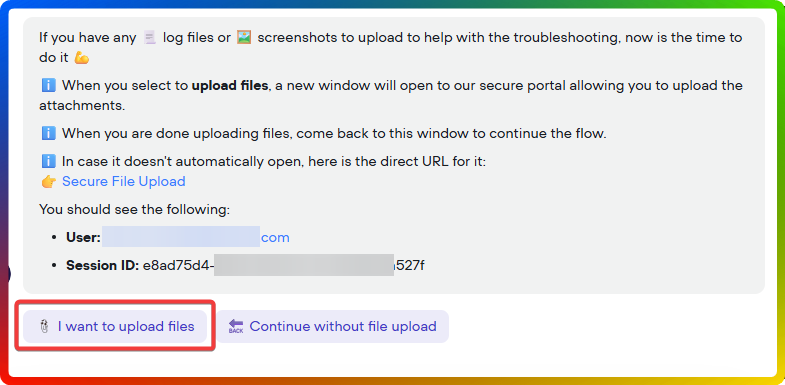
Secure Upload Prompt: During your conversation with the AI assistant, you may be prompted to upload files:
-
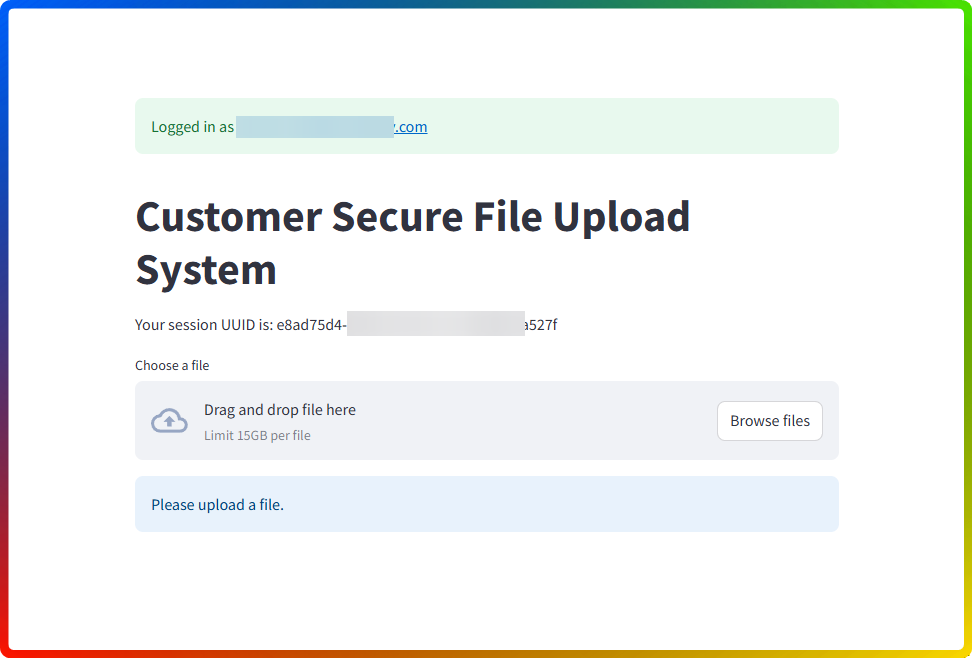
Clicking o the 📎I want to upload files option will get you to a link to this portal:
https://files.eswsecuretransfers.com/customers?token=<authentication_token>
-
-
Temporary, Unique URL: This link is programmatically generated per session and is valid for a limited time to ensure security.
-
Drag-and-Drop Simplicity: Simply drag and drop your files into the designated field in your browser — no special software required.
-
AI-Powered File Analysis: The AI assistant will analyze the attachment and provide tailored, intelligent responses based on the file’s contents.
-
One Link per Interaction: Each session generates a new portal URL to ensure the analysis and support remain specific to your issue.
Option 2: Request a Manual SFTP Upload Link (For Advanced or Offline Upload Needs)
For customers unable to use the AI assistant upload flow or who prefer an SFTP method, we can manually generate an SFTP upload credential.
How it works:
-
Contact Support Directly: Once a support ticket is created, ask the support agent to set up an SFTP upload link.
-
Use an FTP Client: Once credentials are provided, use an FTP client (e.g., FileZilla) to connect and upload your file securely.
-
Technical Steps: You’ll receive server address, username, password, and upload directory details from the support team.
Summary
To share large attachments with Support:
-
Use the AI Assistant secure portal for a seamless, browser-based upload with intelligent analysis.
-
Or, request manual SFTP access from a support agent for advanced upload scenarios using tools like FileZilla.
Both methods prioritize security, with unique links or credentials issued per request to protect your data.
FAQ
1. How do I know my uploaded file is secure?
Each upload link or SFTP credential is uniquely generated and time-bound, ensuring your data is handled securely.
2. Can I reuse the secure upload URL provided by the AI assistant?
No. Each URL is valid only for the session it was issued in. For a new upload, initiate another session or interaction.
3. What if I can't use the AI upload portal?
Simply request an SFTP link from a support agent. You'll need an FTP client like FileZilla to complete the upload.
Ciprian Nastase
Comments